Importing works from other systems
Watch this short video about how to add works to your ORCID record using a Search & Link wizard
Search and Link wizards are the recommended way to populate your record. Wizards make adding works easy, ensure you are getting data about the work directly from the source so it is accurate, and allow the addition of contributor information, which is not possible via other methods (users can manually add their own contributor role but cannot add other contributors).
To add works to your ORCID record using a Search & Link wizard, you must first grant access to the organization’s integration:
- Select the platform you want to use to import your works from the dropdown list.
- You’ll be prompted to grant access to your ORCID record then taken to the member’s website to select the works to add to your ORCID record.
- Works added with a Search and Link Wizard will display the relevant organization as the source of the item and you as the source of the connection between that item and your record.
- This displays as “[researcher name] via [wizard name].”
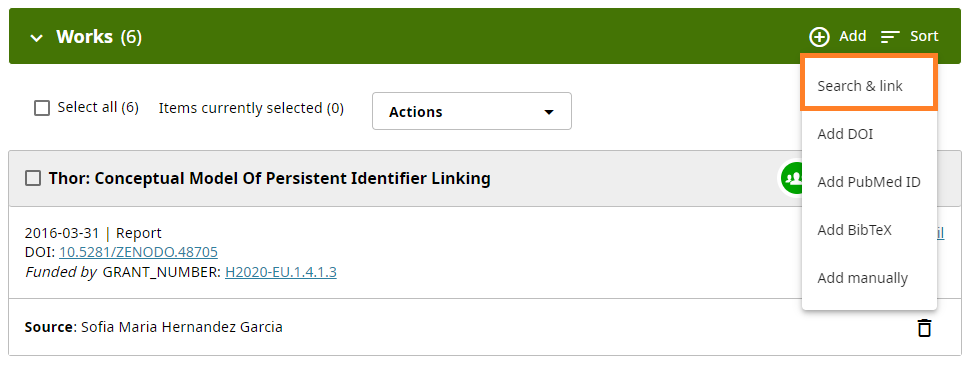
Which search & link wizard(s) should you choose? Select one that matches your geographic or subject areas of research.
Recommended search and link wizards are:
- CrossRef Metadata Search: CrossRef Metadata Search allows you to search and add works by title or DOI. Once you have authorized the connection and are logged into ORCID, CrossRef search results include a button to add works to your ORCID record.
- DataCite: DataCite allows you to find your research datasets, images, and other works. Recommended for locating works other than articles as well as works that can be found by DOI.
- Europe PubMed Central: Europe PubMed Central allows you to import works from the Europe PubMed database, which includes all articles indexed by PubMed Central. Recommended for adding multiple published articles, and patents.
- ISNI: ISNI allows you to link your ISNI record in the Other IDs section.
- The Lens: The Lens serves global patent and scholarly knowledge on a public good platform, enabling you to import all your scholarly works and patents to your ORCID record from a single location. Use your ORCID Plus Profile on Lens to quickly find and sync all your works to ORCID and showcase your career output on an auto-generated author/inventor profile that is based on your ORCID record.
- MLA International Bibliography: MLA International Bibliography allows users to import books and articles from the Modern Language Association’s database. Recommended for adding works in the humanities.
- ResearcherID: The ResearcherID publication wizard is temporarily unavailable while ResearcherID is moving to Web of Science. Follow this link to join Web of Science, find your publications on Web of Science, and export them to ORCID. Recommended for adding multiple published articles to your ORCID record.
- Scopus Author ID: Use this wizard to add your Scopus Author ID to your Other IDs section of your record and import works associated with your Scopus Author ID; see Manage My [Scopus] Author Profile for more information. Recommended for adding multiple published articles to your ORCID record.
- OpenAire: This wizard allows you to claim and import works from OpenAire Explore, including journal articles, datasets, software and other research outputs. To use, you must first sign in to OpenAire.
Auto-updates in third-party systems: Web of Science
You can grant the peer review recognition service Web of Science permission to keep your ORCID record updated with peer review history that has been shared with their service. Connect your ORCID iD when you register a Web of Science account, or connect it from within your Web of Science account settings.
Once connected, you can enable Web of Science auto-updates every two weeks in your Web of Science Review Settings. You can disable auto-update at any time from your Web of Science review settings, or by revoking permissions to Web of Science from your ORCID account settings.
Auto-updates in third-party systems: DataCite
You can grant DataCite long-lasting permissions using their Search & Link wizard from your ORCID record or directly at DataCite. To benefit from ORCID auto-update, you must also enable auto-update in your personal DataCite profile. Once it is enabled, whenever a data center submits a new work to DataCite which has your ORCID iD embedded in the work metadata, DataCite will automatically add it to your ORCID record. You can disable DataCite auto-update at any time from your DataCite profile, or by revoking permissions to DataCite from your ORCID account settings.
Auto-updates in third-party systems: Crossref
Crossref has two separate systems which interact with ORCID:
- Crossref Metadata Search: The ORCID Search & Link wizard (no auto-updates)
- Crossref: An auto-update system activated by invitation from your ORCID inbox
The Crossref auto-update process is granted from a message within your ORCID Inbox. The request is sent to your ORCID Inbox after a publisher submits a new work to Crossref, with your ORCID iD embedded in the metadata.
If you choose to grant long-lasting permissions, Crossref will then update your record automatically whenever a new work associated with your ORCID iD is found in their system – from any publisher. If you do not want to grant permission to update your record with the new work, archive the notification from Crossref.